Guests point their phone camera at the code and join your network. Nobody has to spell out the password.
Free
No sign-up
Private
Fill in the form and your code appears here.
On iPhone, press and hold the code to save it to Photos.
Wi-Fi
How to make a Wi-Fi QR code
Enter your network
Type the network name and password exactly as they are, capital letters included.
Save or print it
Download the code, or tap Print for a ready-made sign with your network name on it.
Guests scan and join
They open their camera, point it at the code and tap the banner. That is all.
Get it right the first time
Test with a phone that has never joined your network
Your own phone already knows the password, so it cannot tell you whether the code works. Ask a friend to scan it, or "forget" the network on your phone first and then scan.
Special characters are handled for you
Passwords with a semicolon, colon, comma, quote mark or backslash break many hand-made Wi-Fi codes. This generator marks those characters the way phones expect, so the password arrives intact.
Use a guest network for visitors
Most routers can run a second network just for guests. People on it reach the internet but not your computers, printer or smart-home devices. Make the code for that network, and change its password now and then: an Airbnb between long stays, a café every few months.
Where to put the sign
Somewhere people look while they wait: by the till, on the table, on the fridge, in the welcome folder. Keep it flat, out of glare, and away from windows that face the street.
Who it is for
Home. Friends and family join without you reading out a long password.
Short-term rentals. Put the sign in the welcome book and stop answering "what's the Wi-Fi?" messages.
Cafés, salons and waiting rooms. One sign at the counter or on each table.
Offices and events. A guest network code on the meeting-room wall or the badge desk.
What is inside a Wi-Fi QR code
Just three things: the network name, the password and the security type. Phones read it as "join this network". It does not link to a website and does not need the internet to work, which is why it can never expire.
QR Maker for iPhone
Keep your Wi-Fi code in your pocket
Show the code on your screen when a guest asks, no printout needed
Saved in the app, so you never have to type the password again
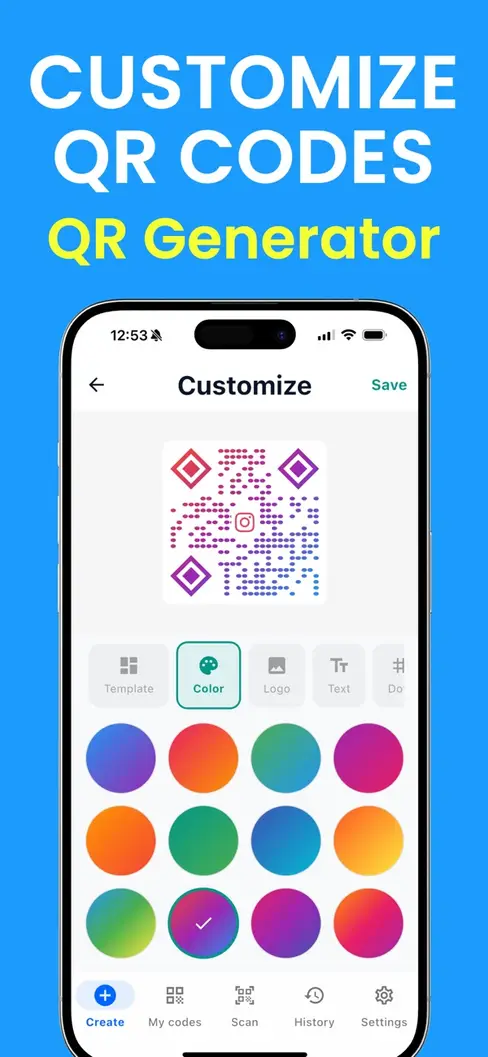
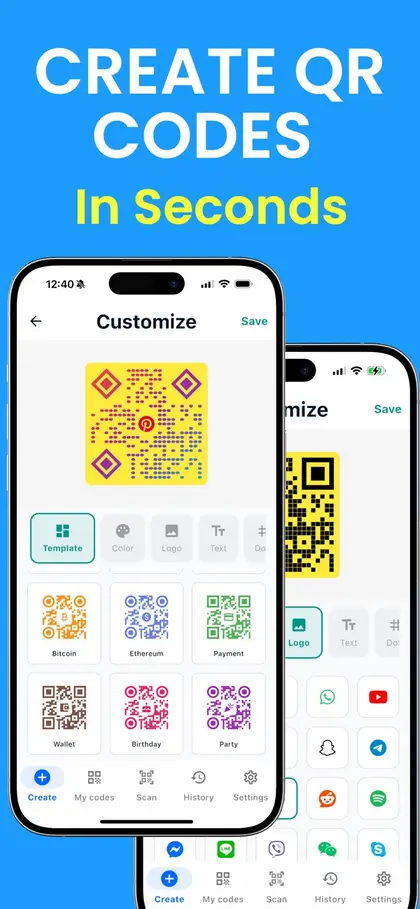
Restyle it with colors and templates to match your space
Works without an internet connection
Scan with your iPhone camera to get the app
Free to download on the App Store.
Wi-Fi QR code questions
Does a Wi-Fi QR code expire?
No. The network name and password are stored in the code itself, so it works for as long as they stay the same. There is no scan limit and nothing to renew.
I changed my Wi-Fi password. Does the old code still work?
No. The old code still holds the old password. Make a new code with the new password and replace any signs you printed.
Is my Wi-Fi password sent anywhere?
No. This page builds the code on your own device. The password is never uploaded, and it is cleared from the form when you leave the page.
Can someone read my password from the code?
Yes. A Wi-Fi QR code holds the password as plain text, and many scanner apps will show it. Treat the code like the password itself: put it where guests can see it, not in a window facing the street. For visitors, a separate guest network is the safest setup.
How do guests join with the code?
On an iPhone or iPad, open the Camera, point it at the code and tap the "Join network" banner. On most Android phones, the camera does the same; if it does not, go to Settings, Wi-Fi and tap the QR icon next to "Add network". No app is needed.
Which security type should I choose?
Keep the first option for nearly every home and office network: it covers WPA, WPA2 and WPA3. Choose WEP only for a very old router that still uses it, and "No password" for an open network.
My network is hidden. Will the code work?
Tick "My network is hidden" so the code tells the phone to look for a network that is not being announced. Android phones handle this well. If an iPhone will not join, add the network once by hand in Settings.
Where do I find my network name and password?
Look for a sticker on the router: the name is often labelled SSID and the password "Wi-Fi key" or "WPA key". If you changed them, check the router's app or settings page. Both are case-sensitive, so type them exactly.
How big should I print it?
For a sign people scan from arm's length, 4 to 5 cm (about 2 inches) wide is comfortable. Under each code we show the smallest size that still scans. Bigger is fine; keep the white border around it.
 QR Maker