QR Maker
1. Decide what the code should do
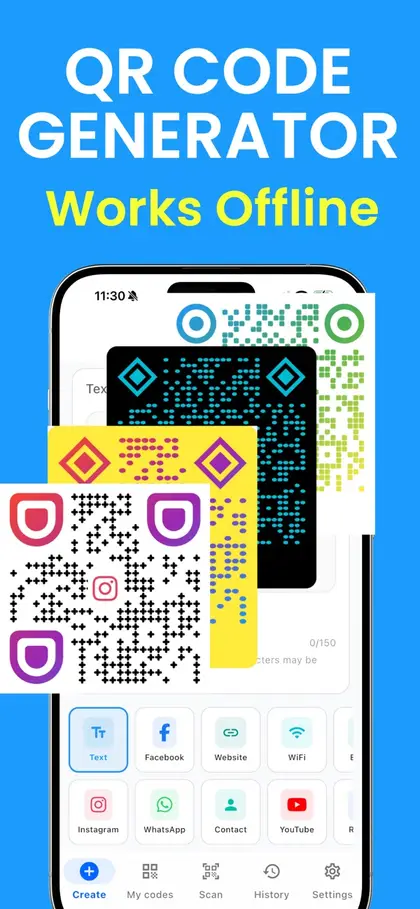
A QR code is a way of handing a phone a small piece of information. What the phone does next depends on what you put in:
- A link opens a web page: a site, menu, form, video or profile.
- Wi-Fi details let the phone join a network without typing the password.
- A contact card saves a name, number and email to the address book.
- Text simply shows a message.
- Email, SMS or a phone number start a message or a call, ready to send.
2. Enter the details
Pick the type in the maker above and fill in the fields. The code is drawn as you type. Keep the content as short as you can: more characters mean more, smaller dots, and small dots are harder to scan.
3. Style it, if you want to
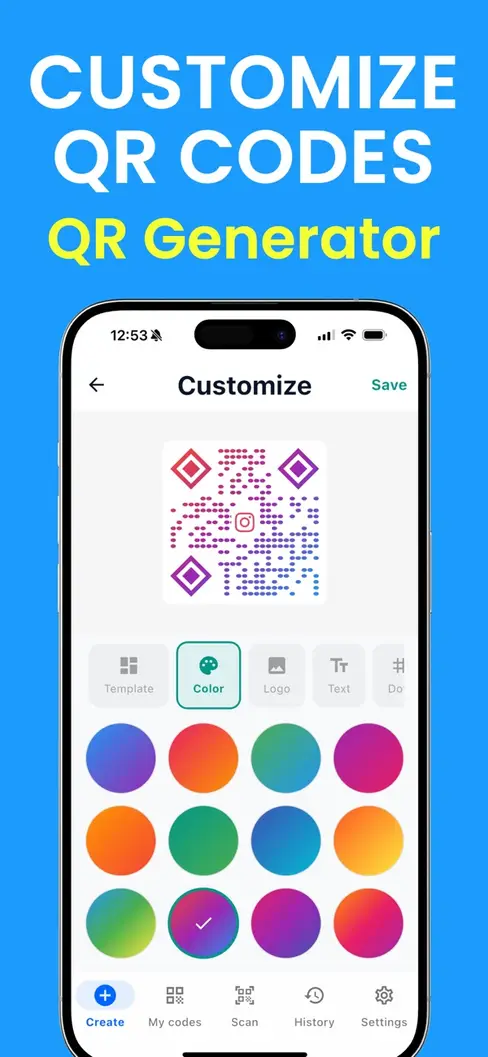
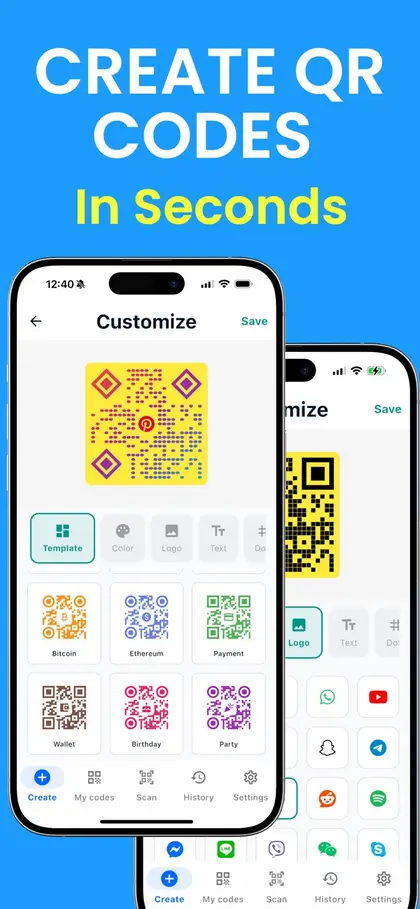
A plain black code on white scans best and suits most uses. To match a brand, open Style to change the colors, smooth the dots or add a logo. Keep the code dark and the background light. There is more on this in the custom QR code page.
4. Download the right file
- PNG for documents, slides, emails, websites and social posts.
- SVG for anything a printer or designer will handle: it stays sharp at any size.
5. Test it before you share it
Open the camera on your phone and point it at the code, on screen and again on a test print. Check that it opens the right page, joins the right network or saves the right contact. For Wi-Fi, test with a phone that has not joined the network before.
6. Print it at a size people can scan
Make the code about one tenth as wide as the distance people will scan it from.
| Where | Scanning distance | Code width |
|---|---|---|
| Business card, product label | 15–20 cm | 2 cm (0.8 in) |
| Table sign, flyer | 30–50 cm | 3–5 cm (1.2–2 in) |
| Poster, shop window | 1–2 m | 10–20 cm (4–8 in) |
| Banner, vehicle | 5 m and more | 50 cm (20 in) and up |
Keep the white border, avoid curved and glossy surfaces where you can, and add a few words that say what the code does.
Common mistakes
- Printing before testing. One typo in a link means reprinting everything.
- Using a trial code. Some generators give you a code that stops working when the trial ends. Codes made here are static and permanent.
- Pale colors. Yellow or light grey on white looks elegant and does not scan.
- Cropping the border. The empty margin is part of the code.
- No call to action. People scan when they know what they will get.